
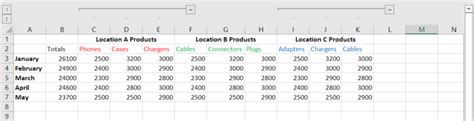
Whether you’re managing a customer list, inventory, or project data, Labeling Groups In Excel can transform how you scan and analyze your rows. This guide shows practical steps to categorize entries, assign group labels, and keep data clean — all while staying efficient in Excel.
Key Points
- Clarifies data structure by creating a repeatable taxonomy for every row.
- Improves filtering, sorting, and reporting accuracy across large datasets.
- Promotes consistency with standardized labels that reduce duplicates and confusion.
- Integrates seamlessly with PivotTables, charts, and dashboards for clear visuals.
- Supports dynamic labeling through formulas that adapt as data changes.
Why Labeling Groups In Excel matters for data work
Labeling groups in Excel turns scattered rows into meaningful categories, enabling quick insights and reliable comparisons. When you standardize group labels, your filters reflect intentional structure rather than ad-hoc tagging, which speeds up analysis and ensures stakeholders see the same story in every report.
Getting started: a quick framework
Begin with a simple, repeatable setup. Create a dedicated helper column called GroupLabel and assign each row to a group by clear rules. As you grow your dataset, you can expand the rules without reworking the entire model.
Practical techniques to implement Labeling Groups In Excel
Step 1 — Create a dedicated label column: Add a column named GroupLabel next to your data. This column will house the final group tag for each row.
Step 2 — Use formulas to assign labels: Use IF, IFS, or SWITCH to derive a label from one or more criteria. For example, =IF(A2=“North”,“Region: North”,“Region: Other”).
Step 3 — Normalize labels for consistency: Apply TRIM, UPPER or PROPER, and CLEAN to standardize capitalization and remove hidden characters that cause fragmentation.
Step 4 — Leverage related Excel features: Sort by GroupLabel, filter on GroupLabel values, and create PivotTables or charts that summarize by group. Conditional formatting can color-code groups for quick visual scanning.
Advanced tips for Labeling Groups In Excel
To handle more complex schemas, combine multiple fields into a single label. For example, =TEXTJOIN(” - “,TRUE,Department,ProjectPhase,Status) creates a composite GroupLabel that captures multiple dimensions in one tag. Keep a master list of valid labels and use data validation to prevent typos from sneaking in.
When data updates, revisit your rules to ensure new rows receive appropriate labels. Consider using dynamic ranges and named ranges so your formulas continue to work as your dataset expands.
What is the fastest way to start labeling groups in Excel?
+Start with a simple helper column and a basic IF formula that tags rows by a single criterion. As you gain confidence, expand to multiple criteria using IFS or SWITCH, and then standardize with a shared glossary of labels.
Can I label groups based on more than one column?
+Yes — create a composite label by combining fields with TEXTJOIN or CONCAT. This preserves context across departments, projects, and statuses without creating a sprawling set of single-dimension labels.
How do I maintain consistency as data grows?
+Maintain a centralized list of allowed labels and enforce it with Data Validation. Use standardized formulas and regularly audit a sample of rows to catch drift before it becomes a problem.
How can I visualize labeled groups in charts?
+Add the GroupLabel column to the Rows (or Legend) area of a PivotTable or PivotChart. This provides a clean breakdown of data by each group and supports quick comparison across categories.
Are there quick shortcuts to speed up labeling?
+Yes. Use a few strategic steps: build a concise label glossary, apply a single formula to tag rows, and then copy/paste values to freeze labels. Conditional formatting can highlight groups for immediate visual cues.